Are you tired of pouring money into
Google Ads without seeing tangible results? We’ve all been there, watching our ad spend increase while conversions remain a mystery. But what if we told you there’s a way to turn this frustration into actionable insights?
Enter
Google Ads Conversion Tracking – the game-changer in digital advertising that every marketer needs to master. It’s not just about running ads; it’s about
understanding their impact on your bottom line. Whether you’re a seasoned pro or just starting out, setting up accurate conversion tracking can be the difference between a successful campaign and a costly misstep.
In this guide, we’ll walk you through
7 essential tips for setting up Google Ads Conversion Tracking like a pro. From understanding the basics to troubleshooting common errors, we’ve got you covered. Get ready to unlock the full potential of your ads and watch your ROI soar! Let’s dive in and transform the way you approach Google Ads forever.
Google Ads Conversion Tracking (TOC)
Table of Contents
We’ve put together a comprehensive guide to help you master Google Ads Conversion tracking. Here’s what we’ll cover in this article:
| Section |
Topic |
| 1 |
What is Google Ads Conversion Tracking? |
| 2 |
Why is Google Ads Conversion Tracking Important? |
| 3 |
How to Set Up Google Ads Conversion Tracking? |
| 4 |
Advanced Tips for Google Ads Conversion Tracking |
| 5 |
Conversion Tracking Common Errors and Troubleshooting |
| 6 |
Google Ads Conversion Tracking FAQs |
| 7 |
Final Thoughts: Google Ads Conversion Tracking |
Throughout this guide, we’ll dive deep into each aspect of Google Ads Conversion tracking, providing you with actionable insights and expert tips. We’ll start by explaining the basics, move on to the setup process, and then explore advanced techniques and troubleshooting. Here’s a quick overview of what you can expect:
- A clear understanding of Google Ads Conversion tracking
- The importance of tracking conversions for your ad campaigns
- Step-by-step instructions for setting up conversion tracking
- Advanced strategies to maximize your tracking effectiveness
- Solutions to common errors and troubleshooting techniques
- Answers to frequently asked questions about conversion tracking
By the end of this article, you’ll have a solid grasp of Google Ads Conversion tracking and be well-equipped to implement it effectively in your campaigns. Let’s begin by exploring what Google Ads Conversion tracking actually is and why it’s crucial for your advertising success.
What is Google Ads Conversion Tracking?
How Google Ads Conversion Tracking Works?

Google Ads Conversion Tracking is a powerful tool that allows us to measure the effectiveness of our advertising campaigns. By understanding how it works, we can make more informed decisions about our marketing strategies.
At its core, Google Ads Conversion Tracking operates through a simple yet effective process:
- Tracking Code Installation
- User Interaction
- Conversion Recording
- Data Analysis
Let’s break down each step:
- Tracking Code Installation: We place a small piece of code, called a conversion tracking tag, on our website’s conversion pages.
- User Interaction: When a user clicks on our ad and completes a desired action (like making a purchase), they reach the conversion page.
- Conversion Recording: The tracking code sends information about the conversion back to Google Ads.
- Data Analysis: We can then view and analyze this data in our Google Ads account.
Here’s a comparison of what Google Ads tracks vs. what it doesn’t:
| Tracked |
Not Tracked |
| Ad clicks leading to conversions |
Organic search conversions |
| Conversion value |
Personal user information |
| Conversion time and date |
Non-conversion actions |
| Device used for conversion |
Conversions from other ad platforms |
By leveraging this data, we can optimize our campaigns for better performance. We can identify which ads, keywords, and campaigns are driving the most valuable conversions, allowing us to allocate our budget more effectively.
Why is Google Ads Conversion Tracking Important?
Benefits of Conversion Tracking
Google Ads conversion tracking is a crucial tool for businesses looking to
maximize their advertising ROI. By implementing this feature, we gain valuable insights into the effectiveness of our ad campaigns and can make data-driven decisions to improve our marketing strategies.
Improved ROI Measurement
One of the primary benefits of conversion tracking is the ability to measure our return on investment accurately. We can see which ads, keywords, and campaigns are driving the most conversions, allowing us to allocate our budget more efficiently.
| Metric |
Without Tracking |
With Tracking |
| ROI Visibility |
Limited |
Comprehensive |
| Budget Allocation |
Guesswork |
Data-driven |
| Campaign Optimization |
Difficult |
Precise |
Enhanced Campaign Optimization
With conversion tracking in place, we can:
- Identify high-performing keywords and ad groups
- Adjust bids based on conversion data
- Refine targeting to reach more valuable audiences
- Optimize ad copy and landing pages for better conversion rates
Better Understanding of Customer Journey
Conversion tracking helps us map out the customer journey, providing insights into:
- Which channels are most effective in driving conversions
- How long it takes for a user to convert after clicking an ad
- Which devices are most commonly used for conversions
By understanding these aspects, we can tailor our marketing efforts to match user behavior and preferences, ultimately leading to more efficient and effective campaigns.
How to Set Up Google Ads Conversion Tracking?
Method 1: Setting Up Conversion Tracking with Google Tag Manager (GTM)
Setting up Google Ads conversion tracking with Google Tag Manager (GTM) offers a flexible and centralized approach. Here’s how we can do it:
- Create a Google Tag Manager account if you haven’t already.
- Set up a new container for your website.
- Create a new tag in GTM:
- Choose “Google Ads Conversion Tracking” as the tag type.
- Enter your conversion ID and label from Google Ads.
- Set up a trigger for the tag to fire on the desired conversion action.
- Publish your GTM container.
| Step |
Action |
Description |
| 1 |
Create GTM Account |
Sign up for GTM if you don’t have an account |
| 2 |
Set Up Container |
Create a new container for your website |
| 3 |
Create Tag |
Choose Google Ads Conversion Tracking tag type |
| 4 |
Set Up Trigger |
Define when the tag should fire |
| 5 |
Publish |
Make your changes live |
Method 2: Setting Up Conversion Tracking with Analytify (Easy Method)
For those of us looking for a simpler solution,
Analytify provides an easy way to set up Google Ads conversion tracking:
- Install and activate the Analytify plugin on your WordPress site.
- Connect your Google Ads account to Analytify.
- Navigate to the Analytify dashboard and find the Google Ads section.
- Select the conversions you want to track.
- Analytify will automatically add the necessary tracking code to your site.
This method eliminates the need for manual code insertion and simplifies the process significantly. It’s particularly useful for those of us who aren’t comfortable with coding or prefer a more user-friendly approach.
Now that we’ve covered the two main methods for setting up Google Ads conversion tracking, let’s move on to some advanced tips to optimize our tracking setup.
Advanced Tips for Google Ads Conversion Tracking
Enable Enhanced Conversions in Google Ads
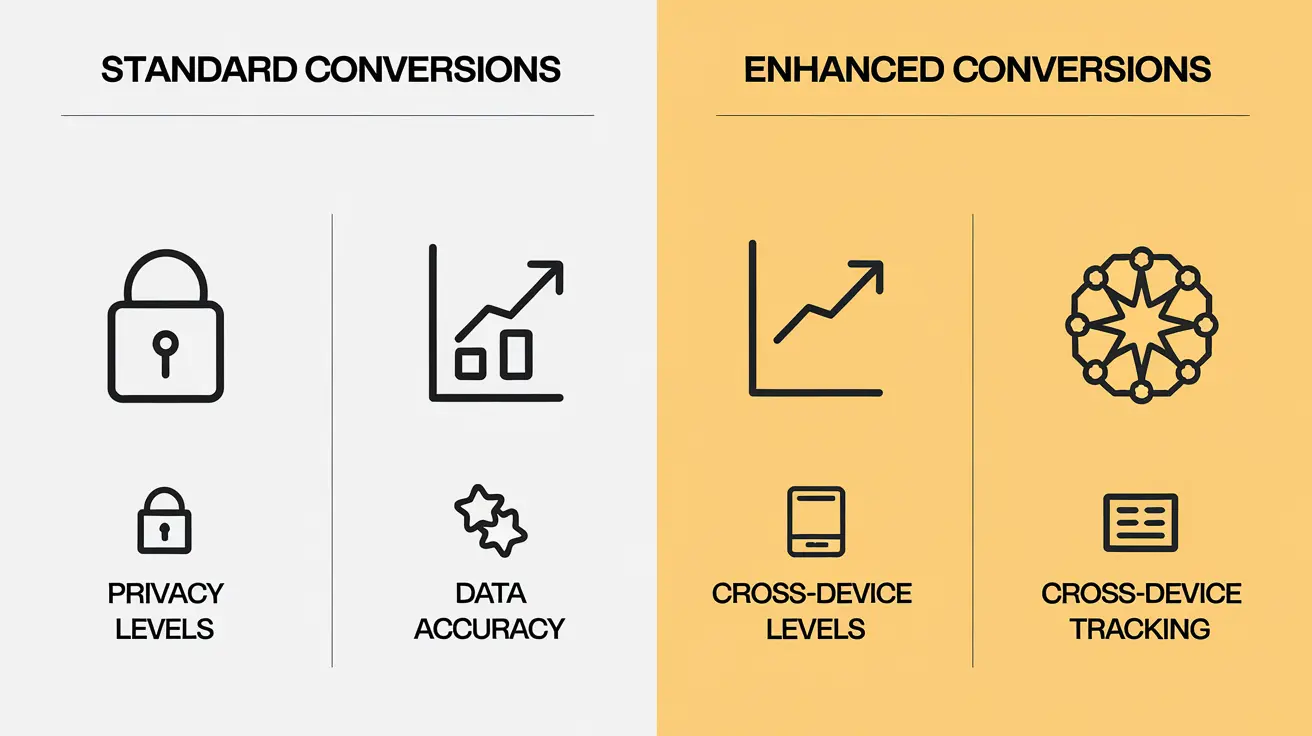
We can take our Google Ads conversion tracking to the next level by enabling Enhanced Conversions. This feature improves the accuracy of our conversion measurement by sending hashed first-party conversion data from our website to Google in a privacy-safe way.
To enable Enhanced Conversions:
- Sign in to your Google Ads account
- Navigate to ‘Tools & Settings’ > ‘Conversions’
- Select the conversion action we want to enhance
- Click ‘Edit’ and then ‘Turn on enhanced conversions’
- Choose between automatic or manual setup
Here’s a comparison of standard vs. enhanced conversions:
| Feature |
Standard Conversions |
Enhanced Conversions |
| Data Accuracy |
Good |
Better |
| Privacy |
Standard |
Enhanced |
| Setup Complexity |
Simple |
Moderate |
| Cross-device Tracking |
Limited |
Improved |
Track Google Ads Conversions with Dynamic Values
Now that we’ve enabled Enhanced Conversions, let’s explore
tracking conversions with dynamic values. This approach allows us to measure not just the number of conversions, but also their specific monetary value, providing more precise ROI calculations.
To implement dynamic value tracking:
- Modify our conversion tracking tag to include a variable for the conversion value
- Ensure our website dynamically populates this variable with the actual transaction amount
- Test thoroughly to confirm accurate value reporting in Google Ads
By leveraging these advanced techniques, we can gain deeper insights into our campaign performance and make more informed decisions to optimize our Google Ads strategy.
Conversion Tracking Common Errors and Troubleshooting
GTM: Debugging Triggers and Tags
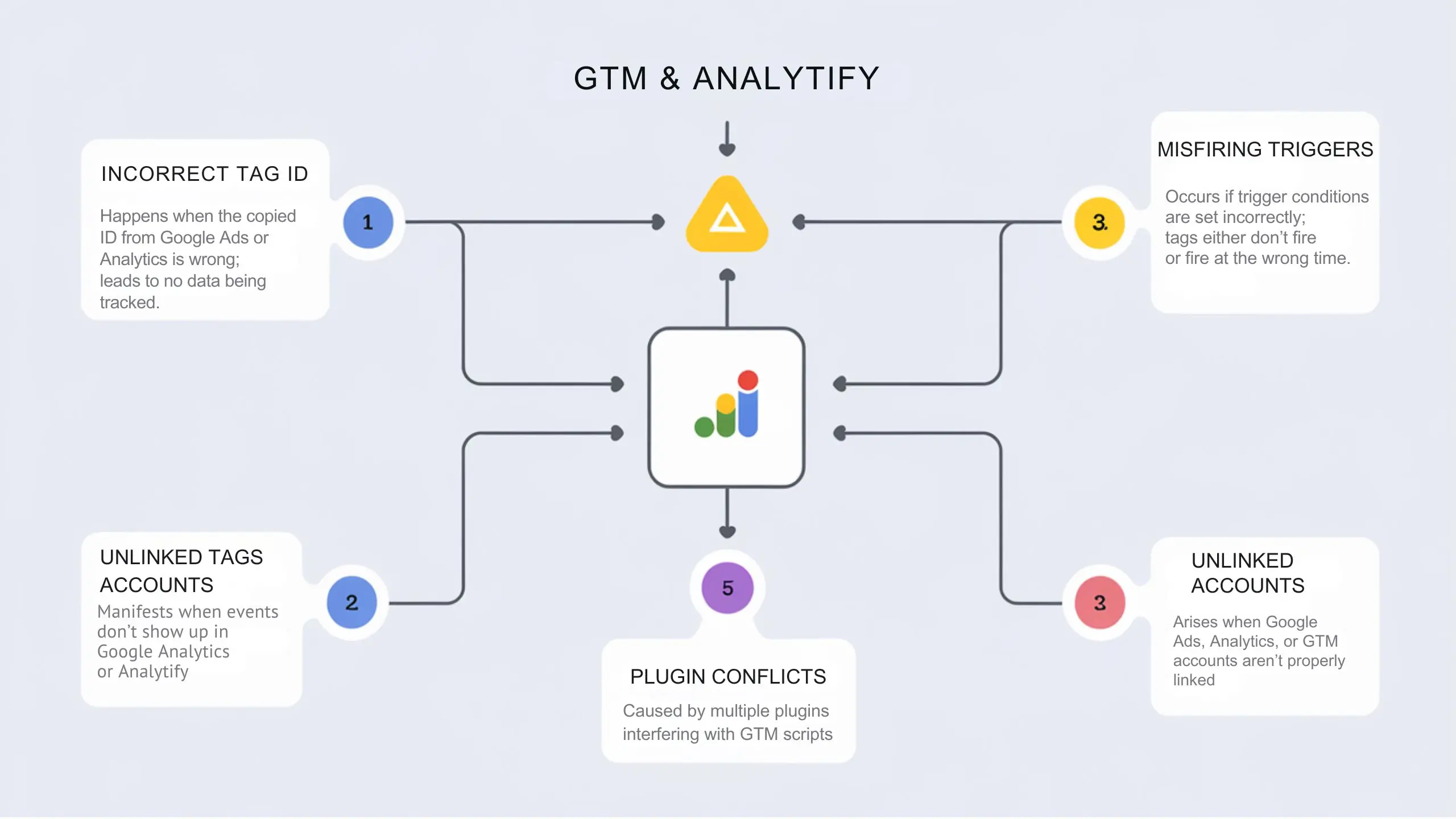
When setting up Google Ads conversion tracking, we often encounter issues with Google Tag Manager (GTM). To ensure accurate tracking, we need to debug triggers and tags effectively. Here are some key steps we can take:
- Use Preview Mode: This allows us to see which tags fire on our website in real-time.
- Check Trigger Conditions: Ensure our triggers are set up correctly and firing at the right moments.
- Verify Tag Configuration: Double-check that our conversion tags contain the correct conversion ID and label.
| Debugging Step |
Purpose |
Tool |
| Preview Mode |
Real-time tag firing visualization |
GTM Preview |
| Trigger Inspection |
Verify trigger conditions |
GTM Workspace |
| Tag Verification |
Ensure correct conversion details |
GTM Workspace |
Analytify: Ensuring Correct Account Linking and Plugin Activation
For those of us using Analytify with Google Ads, proper account linking and plugin activation are crucial. Here’s what we need to check:
- Account Linking:
- Verify that our Google Ads account is correctly linked to our Google Analytics account.
- Ensure that the correct views are selected for data sharing.
- Plugin Activation:
- Confirm that the Analytify plugin is properly installed and activated on our WordPress site.
- Check if the necessary API credentials are correctly entered in the plugin settings.
By following these troubleshooting steps, we can resolve common errors in Google Ads conversion tracking and ensure that our data is accurately captured and reported.
Google Ads Conversion Tracking FAQs
Why are my Google Ads Getting Clicks But no Conversions?
If you’re experiencing clicks but no conversions, several factors could be at play. We’ve compiled a list of common reasons and potential solutions:
- Mismatched landing page content
- Slow website loading speed
- Poor user experience
- Incorrect conversion tracking setup
- Unrealistic conversion expectations
To address these issues, we recommend:
- Aligning ad copy with landing page content
- Optimizing website speed
- Improving user interface and navigation
- Double-checking conversion tracking implementation
- Reviewing conversion goals and timeframes
What is the Google Ads Conversion Tracking ID?
The Google Ads Conversion Tracking ID is a unique identifier assigned to each conversion action you create. We use this ID to link conversions to specific ads and campaigns. Here’s a breakdown of its components:
| Component |
Description |
| AW- |
Prefix indicating Google Ads |
| XXXXXXXXX |
Your Google Ads account ID |
| / |
Separator |
| YYYYYYY |
Unique conversion action ID |
Can I Track Conversions Using a Google Ads Conversion Tracking App?
Yes, we can track conversions using Google Ads Conversion Tracking Apps, especially for mobile applications. These apps offer several benefits:
- Simplified setup process
- Real-time conversion tracking
- In-app event tracking
- Cross-device conversion attribution
How to Check Conversion Tracking in Google Ads?
To verify if our conversion tracking is working correctly, we can follow these steps:
- Access the Google Ads account
- Navigate to “Tools & Settings” > “Measurement” > “Conversions”
- Review the “Status” column for each conversion action
- Use the “Test conversions” feature to simulate a conversion
- Check the “Conversion” column in campaign reports
How does Google Ads Conversion Tracking Help Optimize Campaigns?
Google Ads Conversion Tracking is crucial for campaign optimization. It allows us to:
- Identify top-performing keywords and ads
- Allocate budget more effectively
- Refine targeting strategies
- Improve return on ad spend (ROAS)
- Make data-driven decisions for campaign adjustments
Can I Track Multiple Conversions With one Tag?
Yes, we can track multiple conversions with a single Google Ads tag. This approach offers several advantages:
- Simplified implementation
- Reduced code on the website
- Easier maintenance and updates
- Consistent tracking across conversion types
To set up multiple conversions, we need to create separate conversion actions in Google Ads and link them to the same tag on our website.
Final Thoughts: Google Ads Conversion Tracking
The Power of Data-Driven Decision Making

In the world of digital advertising, Google Ads Conversion tracking stands as a cornerstone for success. We’ve explored various aspects of this powerful tool, and it’s clear that its importance cannot be overstated. By implementing accurate conversion tracking, we empower ourselves to make informed decisions based on real data, not just gut feelings or assumptions.
Key Takeaways
Let’s recap some of the essential points we’ve covered:
- Accurate setup is crucial for reliable data
- Regular monitoring and maintenance ensure ongoing success
- Advanced techniques can provide deeper insights
Here’s a quick comparison of advertising with and without conversion tracking:
| Aspect |
With Conversion Tracking |
Without Conversion Tracking |
| ROI Measurement |
Precise |
Estimated or Unknown |
| Campaign Optimization |
Data-driven |
Guesswork |
| Budget Allocation |
Efficient |
Potentially wasteful |
| Performance Insights |
Detailed |
Limited |
Looking Ahead
As we move forward in our digital marketing journey, we must remember that Google Ads Conversion tracking is not just a one-time setup. It’s an ongoing process that requires attention and refinement. By staying up-to-date with the latest features and best practices, we can continue to enhance our advertising effectiveness and drive better results for our businesses.
Now that we have a solid understanding of Google Ads Conversion tracking, we’re well-equipped to take our advertising efforts to the next level. Let’s apply these insights and watch our campaigns soar to new heights of success.
Share on
Share on Social Media
Now that we’ve covered all the essential tips for setting up accurate Google Ads conversion tracking, it’s time to spread the knowledge. Sharing this valuable information with your network can help others improve their digital marketing efforts.
Here are some effective ways to share this blog post:
- LinkedIn: Perfect for professional connections
- Twitter: Great for quick tips and engaging discussions
- Facebook: Ideal for reaching a broader audience
- Pinterest: Excellent for visual learners
Crafting Engaging Social Media Posts
When sharing, consider using these strategies to maximize engagement:
- Highlight key takeaways
- Use relevant hashtags (e.g., #GoogleAds, #ConversionTracking)
- Ask a thought-provoking question
- Include an eye-catching image or infographic
Here’s a comparison of social media platforms for sharing this content:
| Platform |
Audience Type |
Best Content Format |
Engagement Level |
| LinkedIn |
Professionals |
Detailed insights |
High |
| Twitter |
Tech-savvy |
Short tips, threads |
Medium |
| Facebook |
General |
Mixed content |
Medium |
| Pinterest |
Visual |
Infographics, images |
Low |
By sharing this blog post, you’re not only helping others but also positioning yourself as a knowledgeable resource in the field of digital marketing and Google Ads conversion tracking.
Popular on Analytify Right Now!
GA4 and Google Tag Manager Naming Conventions
We understand the importance of staying organized when it comes to digital analytics. That’s why our guide on
GA4 and
Google Tag Manager naming conventions has become a hot topic among our readers. This comprehensive resource offers best practices for structuring your tags, triggers, and variables in a way that’s both logical and scalable.
| Component |
Naming Convention Example |
| Tags |
T_PageView_AllPages |
| Triggers |
TR_PageView_AllPages |
| Variables |
V_CookieValue_UserID |
How to Check if Google Tag Manager is Working? (6 Ways)
Ensuring your Google Tag Manager setup is functioning correctly is crucial for accurate data collection. Our popular article outlines six foolproof methods to verify your GTM implementation:
- Preview and Debug mode
- Network tab in browser dev tools
- Google Tag Assistant
- Real-time reports in Google Analytics
- Tag Manager Injector Chrome extension
- DataLayer Inspector+ Chrome extension
How to Check if GA4 is Working? (2025)
As we move towards a cookieless future, GA4 becomes increasingly important. Our forward-looking guide provides step-by-step instructions on verifying your GA4 setup, ensuring you’re prepared for the analytics landscape of 2025 and beyond.
Google Analytics 4 Measurement ID (Explained)
Rounding out our most popular content is an in-depth explanation of the GA4 Measurement ID. We break down what it is, where to find it, and how to use it effectively in your tracking setup.
GA4 and Google Tag Manager Naming Conventions
Consistent Naming Conventions
When working with GA4 and Google Tag Manager, adopting consistent naming conventions is crucial for efficient management and troubleshooting. We recommend using a standardized format that includes the platform, event type, and specific action. For example:
- GA4_PageView_Homepage
- GTM_Click_SubmitButton
This approach helps us quickly identify the source and purpose of each tag or event.
Hierarchical Structure
Implementing a hierarchical structure in our naming conventions enhances organization and scalability. We can use the following format:
[Platform]_[Category]_[Subcategory]_[Action]
For instance:
- GA4_Ecommerce_Product_View
- GTM_Form_Newsletter_Submit
Naming Convention Best Practices
To ensure clarity and consistency, we follow these best practices:
- Use CamelCase for readability
- Avoid spaces and special characters
- Keep names concise but descriptive
- Use consistent abbreviations
Version Control
For effective version control, we incorporate version numbers in our naming conventions:
- GA4_PageView_v1
- GTM_Container_v2_1
This practice allows us to track changes and rollback if necessary.
Now that we’ve established solid naming conventions for GA4 and Google Tag Manager, let’s explore how to check if Google Tag Manager is working effectively.
How to Check if Google Tag Manager is Working? (6 Ways)
Verifying Google Tag Manager Setup
Now that we’ve covered the essentials of Google Ads conversion tracking, let’s explore how to ensure your Google Tag Manager (GTM) is functioning correctly. Proper GTM setup is crucial for accurate data collection and tracking. Here are six reliable methods to check if your GTM is working:
1. Preview and Debug Mode
GTM’s Preview and Debug mode is our go-to tool for verifying tag functionality. To use it:
- Log into your GTM account
- Click the “Preview” button
- Navigate to your website
- Check the debug panel for fired tags and events
2. Google Tag Assistant
Google Tag Assistant is a browser extension that helps us validate tag implementations:
- Install the extension
- Visit your website
- Click the Tag Assistant icon
- Review the report for GTM-related issues
3. Network Tab Inspection
We can use the browser’s developer tools to check for GTM:
- Open developer tools (F12 or right-click > Inspect)
- Go to the Network tab
- Refresh the page
- Look for ‘gtm.js’ or ‘googletagmanager.com’ requests
4. Source Code Examination
A quick way to verify GTM presence is by checking the source code:
- View the page source (right-click > View Page Source)
- Search for ‘GTM-‘ followed by your container ID
5. Real-Time Reports in Google Analytics
If GTM is linked to Google Analytics, we can check real-time reports:
| Step |
Action |
| 1 |
Open Google Analytics |
| 2 |
Go to Real-Time > Overview |
| 3 |
Visit your website |
| 4 |
Check for active users |
6. GTM Container Lookup Tool
For a quick external check, we use the GTM Container Lookup Tool:
- Visit GTM Look Up
- Enter your website URL
- Check if your GTM container is detected
By utilizing these six methods, we can ensure our Google Tag Manager is working correctly, which is essential for accurate Google Ads conversion tracking.
How to Check if GA4 is Working? (2025)
Verifying GA4 Implementation
To ensure GA4 is working correctly, we need to follow a systematic approach. Here are the key steps to check if your GA4 is functioning as intended:
- Use the Real-Time Reports
- Check the DebugView
- Verify Data in Standard Reports
- Inspect Network Requests
Using Real-Time Reports
Real-Time reports are our first line of defense in confirming GA4’s functionality. We can access these reports by navigating to the “Real-Time” section in our GA4 property. Here’s what to look for:
- Active users
- Top events
- User location
If we see data populating in these areas, it’s a good indication that GA4 is collecting data.
Checking DebugView
DebugView is a powerful tool for troubleshooting GA4 implementations. To use it:
- Enable debug mode on your website or app
- Navigate to DebugView in GA4
- Look for incoming events in real-time
This view allows us to see detailed event information, helping us verify that specific events are being tracked correctly.
Verifying Data in Standard Reports
After 24-48 hours of implementation, we should check our standard reports. Here’s a comparison of what to look for in different report types:
| Report Type |
What to Check |
| Acquisition |
Traffic sources, campaign data |
| Engagement |
Page views, events, conversions |
| Monetization |
E-commerce data (if applicable) |
| Retention |
New vs returning users |
Inspecting Network Requests
For a more technical verification, we can inspect network requests:
- Open browser developer tools
- Filter for ‘google-analytics’ or ‘analytics.google.com’
- Look for POST requests to ‘/g/collect’
These requests indicate that data is being sent to GA4. By following these steps, we can confidently verify that our GA4 implementation is working correctly.
Google Analytics 4 Measurement ID (Explained)
Google Analytics 4 Measurement ID (Explained)
In the world of web analytics, Google Analytics 4 (GA4) has introduced several new concepts, one of which is the Measurement ID. This unique identifier is crucial for tracking website and app data in GA4, replacing the older tracking ID used in Universal Analytics.
What is a GA4 Measurement ID?
A GA4 Measurement ID is a unique code that identifies your GA4 property. It typically starts with “G-” followed by a string of numbers and letters. This ID is essential for connecting your website or app to your GA4 property, enabling data collection and analysis.
Here’s a comparison between GA4 Measurement ID and Universal Analytics Tracking ID:
| Feature |
GA4 Measurement ID |
UA Tracking ID |
| Format |
G-XXXXXXXXXX |
UA-XXXXXXXX-X |
| Usage |
GA4 properties |
Universal Analytics properties |
| Data Model |
Event-based |
Session-based |
| Cross-platform tracking |
Yes |
Limited |
How to Find Your GA4 Measurement ID
We can easily locate our GA4 Measurement ID by following these steps:
- Log into your Google Analytics account
- Select the desired GA4 property
- Click on the gear icon to access Admin settings
- In the Property column, click on “Data Streams”
- Choose the appropriate data stream
- The Measurement ID will be displayed at the top of the stream details
With this ID, we can now implement GA4 tracking on our website or app, ensuring accurate data collection for our analytics efforts.
Accurate Google Ads conversion tracking is crucial for optimizing our advertising campaigns and maximizing our return on investment. By implementing the seven essential tips we’ve discussed, we can ensure our tracking is set up correctly and providing valuable insights into our ad performance.
We’ve covered the importance of conversion tracking, how to set it up properly, and advanced techniques to enhance our data collection. We’ve also addressed common errors and troubleshooting methods to keep our tracking running smoothly. Remember, staying informed about updates and best practices in Google Ads conversion tracking is key to maintaining a competitive edge in our digital marketing efforts. Let’s continually refine our approach and leverage the power of accurate data to drive our business forward.
Do you need any assistance with setting your Google Ads Conversion Tracking?
Book a FREE Consultation Today!